Upgrade Old Office Laptops With SSDs Instead of Replacing Them
Most offices have a few laptops that are "too slow" but not actually broken. Staff wait five minutes every morning for Windows to load. Opening a shared Excel file takes long enough to make a coffee. Someone in accounts keeps asking for a new laptop. Before the company signs off on a stack of new machines, there is one question worth asking first: is the laptop really old, or is it just the hard drive?
In many of the office laptops we see around Kuala Lumpur, the processor and memory are still good enough for email, Excel, accounting software and video calls. What holds them back is a mechanical hard drive (HDD) with a spinning disk inside. Replacing it with a solid state drive (SSD) is one of the most cost-effective upgrades an office can make. At KL Computer, office laptop SSD upgrades are a regular job for our technicians, both at our branches and on business visits.
Below we explain which laptops are worth upgrading, which ones are better replaced, what happens to your files, and how to roll out an SSD upgrade in KL and the Klang Valley across a whole office without stopping work. If you would rather have us come to you, our on-site IT support team covers offices across KL and the Klang Valley.
💾 Bulk Office Laptop Upgrade: Send us the model names of your slow laptops and we will tell you which ones are worth upgrading, which ones are not, and how to do the whole batch with as little downtime as possible. WhatsApp us your list to get started.
Signs the Hard Drive Is Slowing Your Laptop Down
A slow laptop is not always a weak laptop. These signs usually point to the storage drive, not the processor, as the real bottleneck.
- ✓Windows takes several minutes to start, and the laptop is still "busy" for a while after you log in.
- ✓Disk shows 100% in Task Manager. Press Ctrl + Shift + Esc. If Disk sits at or near 100% while CPU and Memory are low, the drive is holding everything back.
- ✓Programs hang when opening files, especially accounting software, large Excel files or attachments in Outlook.
- ✓Windows updates take forever and the laptop crawls for the rest of the day after an update.
- ✓Clicking or grinding sounds from inside the laptop. This can mean the hard drive is wearing out. Back up your files now.
- ✓It came with a 500GB or 1TB hard drive. Many budget and business laptops sold in Malaysia a few years ago shipped with mechanical drives to keep prices down.
Why an SSD Makes Such a Big Difference
A hard drive stores data on a spinning disk and reads it with a moving arm, a bit like a record player. An SSD has no moving parts at all. It stores data on memory chips, so it can find and load files almost instantly. For everyday office work, where Windows and programs constantly read small files, that difference is huge.
| What Staff Notice | With a Hard Drive (HDD) | With an SSD |
|---|---|---|
| Starting up | Often several minutes before the laptop is usable. | Usually ready to work in well under a minute. |
| Opening programs and files | Noticeable waiting, freezing when several things open at once. | Programs open quickly, and switching between them feels smooth. |
| Knocks and drops | Moving parts can be damaged if the laptop is bumped while running. | No moving parts, so it handles being carried between meetings much better. |
| Noise and heat | Spinning and clicking sounds, extra heat inside the case. | Silent and runs cooler. |
| Battery | The motor uses power every time the disk spins up. | Uses less power, which can help battery life a little. |
The same upgrade works on office desktops too. If your desktops still run on hard drives, our desktop repair and maintenance service covers SSD and memory upgrades as well.
Upgrade or Replace? A Side-by-Side Look
The price of the laptop is only part of the cost of replacing it. Here is what each option really involves for an office.
| Factor | SSD Upgrade | New Laptop |
|---|---|---|
| Cost | A small fraction of the price of a new business laptop. | Full price per unit, which adds up fast across a team. |
| Files, programs and settings | Can be copied over exactly as they were. | Everything needs to be moved and set up again, including printers and shared folders. |
| Software | Accounting and other licensed software usually keeps working as before. | Some software needs reinstalling, reactivating or a licence transfer. |
| Staff adjustment | None. Same laptop, same keyboard, same desktop, just faster. | New layout, new logins, time spent getting used to it. |
| Old equipment | A working laptop stays in use for longer. | The old laptop needs its data wiped and proper disposal. |
This does not mean you should never buy new. It means your budget goes further when you only replace the laptops that truly need it, and upgrade the rest.
Which Office Laptops Are Worth Upgrading
Not every slow laptop deserves an SSD. This is the same quick check our technicians run before recommending an upgrade.
| Worth Upgrading | Better to Replace |
|---|---|
| Intel Core i5 or i7 from 8th generation onwards, or a similar AMD Ryzen processor | Older entry-level processors that still struggle even after an SSD |
| Can run Windows 11 (supported processor and TPM 2.0) | Cannot run Windows 11 and is stuck on an unsupported version of Windows |
| Body, hinges, keyboard, screen and battery in decent condition | Cracked hinges, worn keyboard, damaged screen or a swollen battery |
| Has a 2.5-inch drive bay or an M.2 slot | Storage soldered onto the board, as in many thin laptops and newer MacBooks |
| Used for email, Excel, accounting software, browsers and video calls | Expected to run heavy design, CAD or video work it was never built for |
The Windows 11 point matters more than it used to. Windows 10 reached end of support in October 2025. An SSD will make a laptop that cannot run Windows 11 faster, but it will still be on an operating system that no longer gets regular security updates. That is not ideal for a laptop holding company data, so we always check this before quoting.
SATA or NVMe: Which SSD Does Your Laptop Take?
"SSD" covers a few different shapes and connections. Buying the wrong one is the most common mistake people make when trying the upgrade themselves.
| SSD Type | What It Looks Like | Commonly Found In |
|---|---|---|
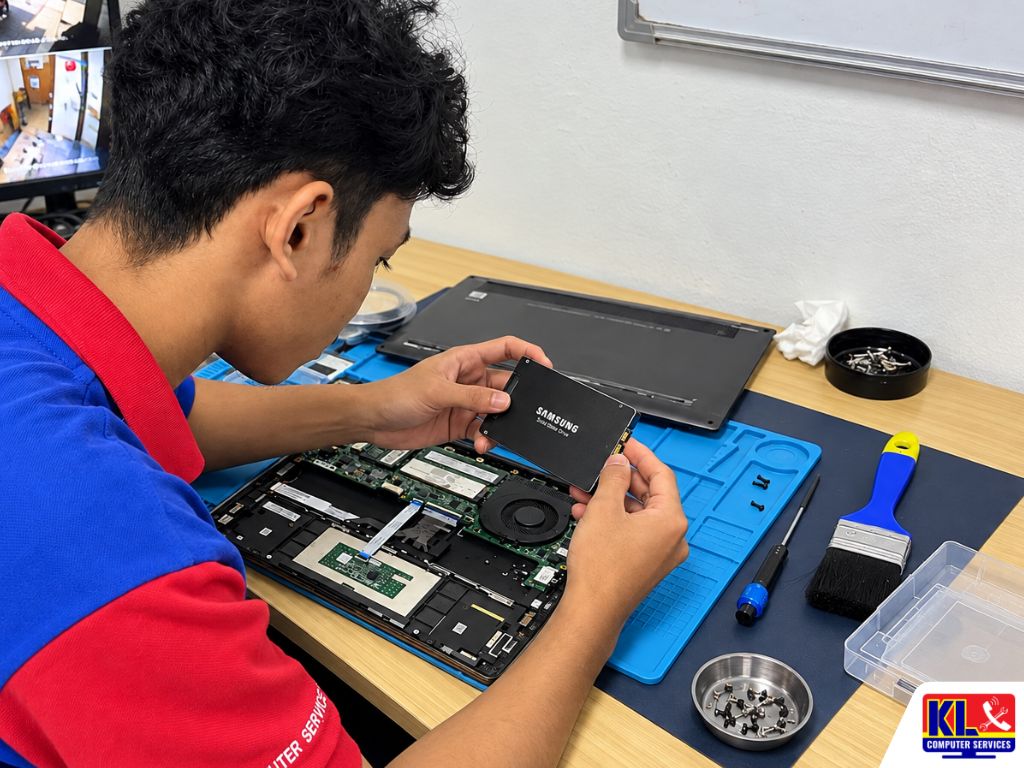
| 2.5-inch SATA SSD | A flat rectangular box, the same size as a laptop hard drive. | Older laptops that came with a hard drive. Usually a direct swap. |
| M.2 SATA SSD | A thin stick that plugs into a slot on the board. | Some laptops from the transition years between hard drives and NVMe. |
| M.2 NVMe SSD | The same stick shape, but with a much faster connection. | Most laptops from the last several years. |
M.2 SATA and M.2 NVMe drives look almost identical but are not always interchangeable. Some laptops also have both a 2.5-inch bay and an M.2 slot, so the SSD can run Windows and programs while the old hard drive stays in as extra storage. We check the exact laptop model before ordering any parts, so nothing is bought twice.
Add Memory at the Same Time
Since the laptop is already opened, it is the right time to look at memory (RAM) too. An SSD fixes slow loading. Enough RAM fixes slowdowns when staff have many things open at once.
- ✓4GB. Too little for Windows 10 or 11 with a browser, Outlook and Excel open together. Upgrading to at least 8GB is strongly recommended.
- ✓8GB. Comfortable for most office staff doing email, documents and browser work.
- ✓16GB. Worth it for accounts staff with very large spreadsheets, managers who keep dozens of tabs open, and light design work.
- ✓Check for soldered memory. Some laptops have part or all of their RAM built into the board. We check how much can actually be added before recommending it.
What Happens to Your Files and Software
This is the first thing most office managers ask. The short answer: nothing is lost if the upgrade is done properly. There are two main ways to move to the new SSD.
| Option | What It Means | Best For |
|---|---|---|
| Clone the old drive | Everything is copied to the SSD as it is: Windows, programs, files, printer settings and desktop shortcuts. | Laptops that work fine apart from being slow, or that run accounting software with a complicated setup. |
| Fresh Windows install | A clean start on the SSD. Files are copied back and programs are reinstalled. | Laptops full of years of unused programs, startup clutter or recurring errors. |
Either way, we back up first. A hard drive that is already wearing out can fail completely during copying, so the backup always comes before anything else.
Your old hard drive belongs to you. We hand it back, or we can wipe it so no company data is left on it. Please do not throw old office drives in the bin, because files can often be recovered from them. If your staff save important work only on their own laptops, this is also a good moment to look at a shared file server or cloud storage so files are not tied to a single machine.
Rolling Out SSD Upgrades Across the Office
Upgrading one laptop is simple. Upgrading fifteen needs a bit of planning so nobody is left without a machine during a busy week.
- 1.Make a simple list. Laptop model, user, rough age, current drive and RAM. Your office admin can usually pull this together in an afternoon, or we can do it on our first visit.
- 2.Start with the worst. Laptops showing 100% disk, clicking drives or constant complaints go first. They bring the biggest improvement and carry the highest risk of data loss.
- 3.Group by model. Offices often bought laptops in batches. Same model means same parts and same steps, which makes the whole job faster.
- 4.Upgrade in rotation. A few laptops at a time, so each person is only without their laptop for part of the day.
- 5.Avoid busy periods. Not during month-end for accounts, and not right before a deadline for sales or design teams.
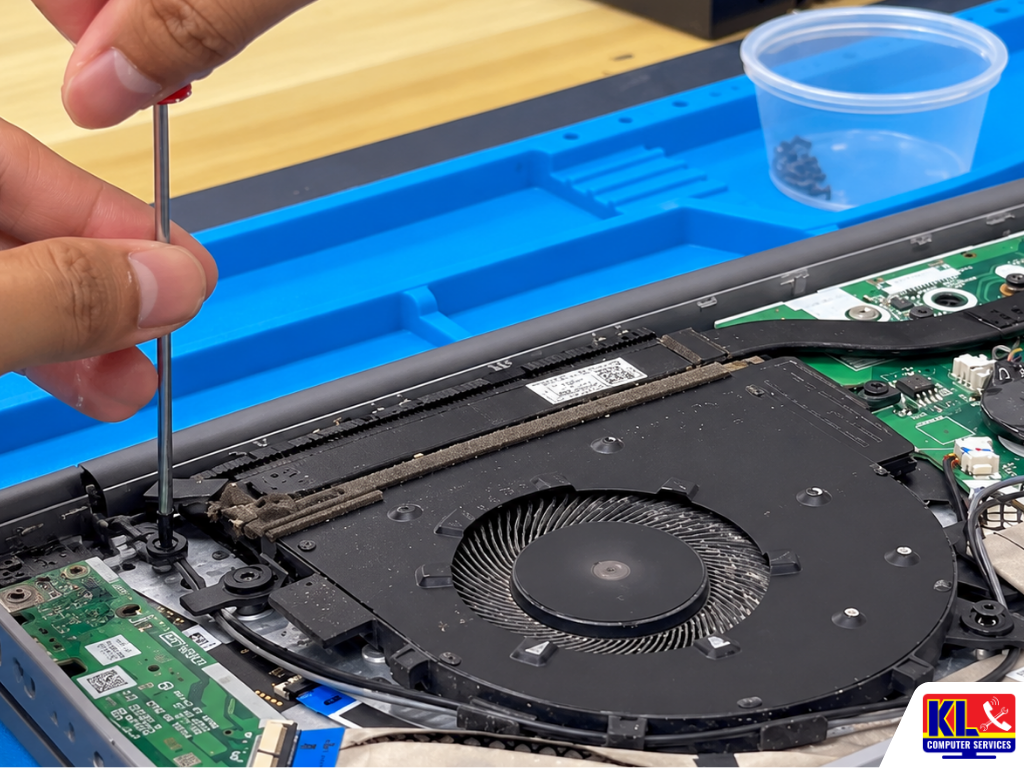
- 6.Clean while it is open. The laptop is already opened, so clearing dust from the fan and checking the battery adds very little time and helps it run cooler.
For offices that want regular hardware checks handled for them, laptop upgrades can be planned as part of our business IT support. Visit rates are listed on our pricing page.
Our Laptop Upgrade Process, Step by Step
Here is how an office laptop upgrade works with us, whether it is one laptop at a branch or a whole office on-site.
- 1.Quick Chat First. Send us the laptop models and how many you have. Photos of the model sticker underneath are enough.
- 2.Check Each Laptop. We confirm the drive type, available slots, RAM, Windows 11 support and overall condition, then tell you honestly which ones are worth upgrading.
- 3.Quote Before Work. You get the parts and labour cost per laptop before anything is ordered. Nothing is done without your approval.
- 4.Back Up, Then Upgrade. Data is backed up, the SSD and any extra RAM are installed, and the drive is cloned or Windows is freshly installed as agreed.
- 5.Test Everything. We check startup, key programs, files, Wi-Fi and printing before the laptop goes back to its user.
- 6.Hand Over. You get the laptop back, the old drive returned or wiped, and a simple record of what was upgraded on each machine.
Areas We Cover Around Klang Valley
We provide office laptop SSD and RAM upgrades across Kuala Lumpur including Setapak, Cheras, Ampang and Kuchai Lama, and our on-site team covers the wider Klang Valley from any branch. If your area isn't listed below, WhatsApp us your location and we'll confirm.
Setapak
Taman Danau Kota
Wangsa Maju
Setiawangsa
Cheras
Pandan Jaya
Ampang
Pandan Indah
Kuchai Lama
Jalan Klang Lama
Bukit Bintang
Visit or Call a Branch
Bring a single slow laptop to any of our four branches for a check, or speak to us about upgrading a whole batch. Our Pandan Jaya branch is the nearest stop for offices in Cheras. Our door-to-door onsite IT services on klcomputerservices.com.my can also come to your premises across KL and Selangor.
📍 Branch - HQ
KL Computer Services Setapak
First Floor, 36-1, Jalan 2/23A, Taman Danau Kota, 53300 Wilayah Persekutuan Kuala Lumpur
Mon-Fri: 9am-7.30pm | Sat-Sun: 9am-7pm
📞 016-501 1914
📍 Branch - Cheras Area
KL Laptop Shop Cheras Pandan Jaya
First Floor, 34-1A, Jalan Pandan 2/1, Pandan Jaya, 55100 Kuala Lumpur
Mon-Fri: 9am-7pm | Sat: 10am-7pm | Sun: Closed
📞 018-245 1914
📍 Branch
KL Computer Shop Ampang Pandan Indah
First Floor, 13M Jalan Pandan Indah 4/2 Ampang, 55100 Wilayah Persekutuan Kuala Lumpur
Mon-Fri: 9am-7.30pm | Sat-Sun: 10am-7pm
📞 018-405 1914
📍 Branch
KL Computer Services Jalan Klang Lama
First Floor, 2-1 Jalan Indrahana 1, Off Jalan Kuchai Lama, Klang Lama, 58200 Wilayah Persekutuan Kuala Lumpur
Mon-Fri: 9am-7.30pm | Sat-Sun: 10am-7pm
📞 018-944 1914Why Offices Choose Us
- ✓Honest Upgrade or Replace Advice. If a laptop is not worth upgrading, we tell you before you spend anything on it.
- ✓A Real Company With Branches Across KL. Four permanent repair shops in Setapak, Cheras, Ampang and Kuchai Lama, not a one-man operator. If something goes wrong after the upgrade, there is a branch near you.
- ✓12 Years in the Industry. We have upgraded and repaired laptops from just about every brand used in Malaysian offices. See our about us page for our background.
- ✓Trusted by Customers. A 4.9 rating from over 2,000 Google reviews at our Setapak branch.
- ✓Your Data Handled Carefully. Backup before every upgrade, and old drives returned to you or wiped, never thrown away.
- ✓Experienced Technicians. Our team works on laptops, desktops, servers and networks every day, so any other issue found during the upgrade can often be sorted out at the same time.
Frequently Asked Questions
Have more questions? Visit our dedicated FAQ page, or see our related business IT services.
Is an SSD upgrade worth it for an old office laptop? ▾
If the laptop still has a mechanical hard drive, a reasonably modern processor and can run Windows 11, yes. It is usually the single biggest speed improvement you can make, at a small fraction of the cost of a new laptop. If the laptop is very old or physically worn out, we will tell you replacing it makes more sense.
Will I lose my files and programs after the upgrade? ▾
No. We back up first, then either clone the old drive so everything stays exactly as it was, or do a fresh Windows install and copy your files back. You choose which one before we start.
How long does an SSD upgrade take? ▾
Installing the drive itself is quick. Most of the time goes into backing up and copying data, which depends on how much is stored on the laptop and whether parts are in stock. We give you a time estimate for each laptop before we start.
What size SSD should we get for office laptops? ▾
For most office users, 512GB is a comfortable size with room for Windows updates, programs and files. 256GB can work for staff who keep most files on a shared drive or cloud storage. We check how much each user currently has stored before recommending a size.
Can every laptop be upgraded to an SSD? ▾
No. Laptops with storage soldered onto the board, such as many thin laptops and newer MacBooks, cannot have their drive replaced. Most business laptops that came with a hard drive can be upgraded. Send us the model and we will confirm.
Should we upgrade the RAM at the same time? ▾
If the laptop has 4GB, yes. Upgrading to 8GB alongside the SSD makes a big difference for everyday multitasking. Laptops with 8GB are usually fine for normal office work, and 16GB suits heavier users. Some laptops have memory built into the board, so we check what can be added first.
What happens to the old hard drive? ▾
It is yours. We return it to you, or we can wipe it so no company data remains. In some laptops it can also stay inside as extra storage. Old drives should never be thrown away as they are, because files can often be recovered from them.
Can you upgrade all our office laptops in one go? ▾
Yes. We plan bulk upgrades in rotation so your team keeps working, starting with the slowest and highest-risk laptops. For larger batches we may split it across more than one visit. Send us your list of models and we will suggest the best schedule.
📞 Call / WhatsApp (Setapak HQ): 016-501 1914
📞 Call / WhatsApp (Cheras/Pandan Jaya): 018-245 1914
📞 Call / WhatsApp (Ampang/Pandan Indah): 018-405 1914
📞 Call / WhatsApp (Jalan Klang Lama/Kuchai Lama): 018-944 1914
📍 Four branches across Kuala Lumpur: Setapak, Cheras (Pandan Jaya), Ampang (Pandan Indah), and Kuchai Lama. Google Maps (Setapak HQ)
🕒 Open daily, hours vary by branch, see individual branch cards above
📧 Email: salesklcs@gmail.com
Table Of Content
Featured Services
Talk To Us
Got an IT issue? Skip the form — just WhatsApp us directly. Describe your problem and we'll get back to you fast.
WhatsApp Us Now