A Quarterly PC Cleaning Schedule for Offices: Less Dust, Less Downtime
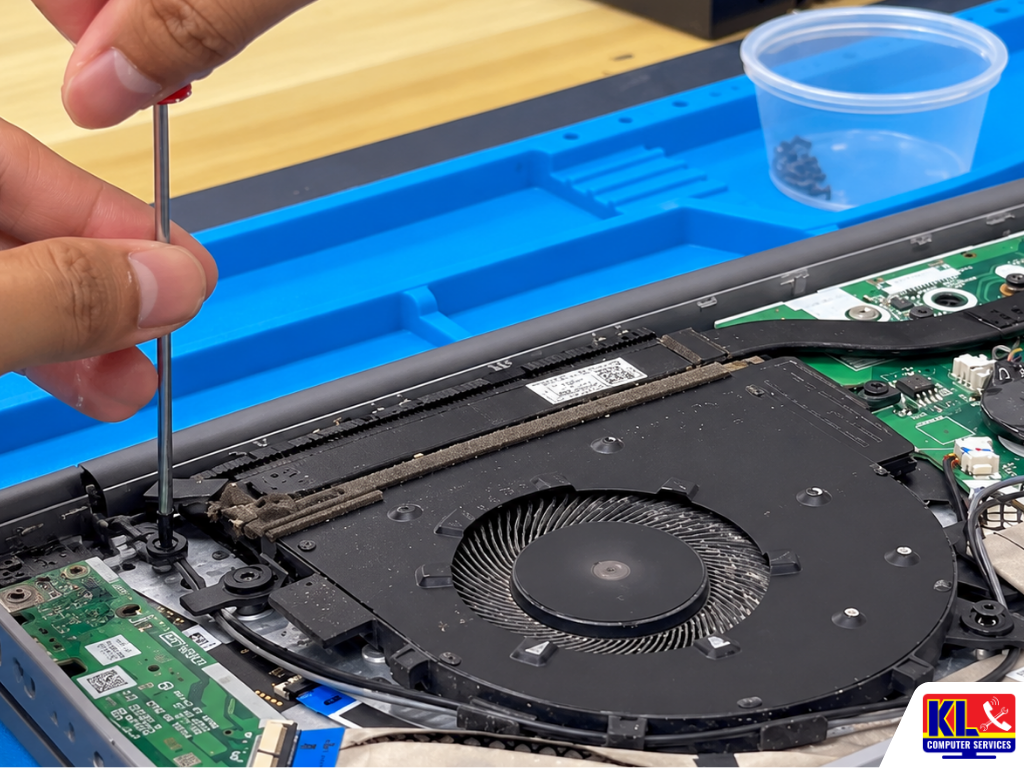
Most office PCs are only opened when something goes wrong. The accounts PC starts restarting by itself during month-end closing. The design workstation slows to a crawl every afternoon. The reception PC fan sounds like a hair dryer. When a technician finally opens the case, the inside is covered in a thick grey layer of dust that has been building up for two or three years.
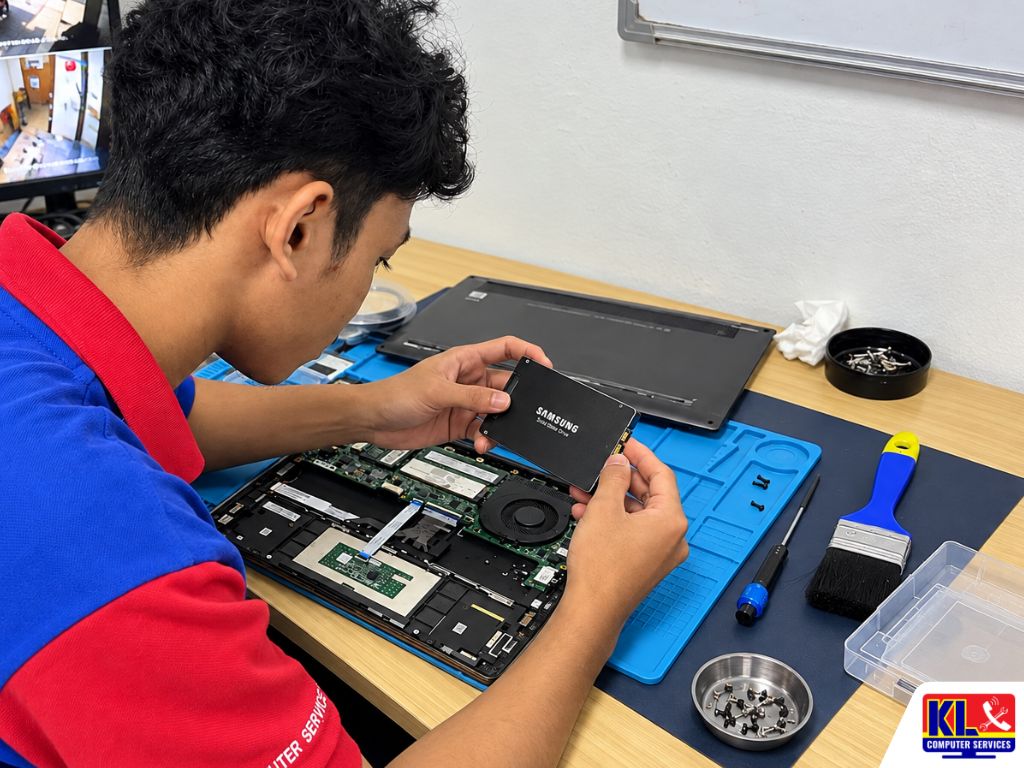
Dust is one of the most common causes of overheating, random shutdowns and early hardware failure we see in office computers around Kuala Lumpur. The good news is that it is also one of the easiest to prevent. A simple quarterly PC cleaning schedule keeps the inside of every machine clear, catches failing fans before they stop, and turns surprise breakdowns into planned maintenance. At KL Computer, computer cleaning for offices is a regular part of the work our technicians do on business visits.
Below is the schedule we recommend for small and medium offices in Malaysia, what to clean each quarter, what your staff can safely do themselves, and how to get it done without stopping work. If you would rather have the whole office handled in one go, our on-site IT support team covers offices across KL and the Klang Valley.
🧹 Bulk Office PC Cleaning: We come to your office, clean the inside of every desktop, check fans and temperatures, and give you a simple record of each machine's condition so you know which PCs need attention next. WhatsApp us with your number of PCs to plan a visit.
Signs Your Office PCs Are Overdue for Cleaning
You do not need to open a PC to know it is struggling. These everyday signs usually mean dust is already affecting how the machine runs.
- ✓The fan is louder than it used to be. A fan spinning at full speed all day is working hard to push air through blocked fins and vents.
- ✓The PC is fine in the morning, slow by afternoon. As the room and the PC heat up, the processor slows itself down to stay safe. This is called thermal throttling.
- ✓Random restarts or shutdowns, especially during heavy work like big Excel files, accounting software or design programs.
- ✓The case or vents feel hot to the touch, or you can see grey fluff at the front intake or rear exhaust.
- ✓The PC does not start after a long weekend or public holiday, then works after a few tries. Dust and humidity together can cause poor contact on memory and connectors.
- ✓Nobody remembers when it was last cleaned. If the answer is "never" or "when we bought it", it is overdue.
What Dust Actually Does Inside an Office PC
A desktop PC pulls in room air all day to cool itself. Everything in that air, from dust and fabric fibres to paper particles near the printer, gets pulled in too. Here is where it settles and what it causes.
| Part | What Dust Does | What Staff Notice |
|---|---|---|
| CPU cooler and heatsink | Packs into the cooling fins and blocks airflow, so heat cannot escape. | Loud fan, slow performance in the afternoon, sudden shutdowns. |
| Power supply | Clogs the power supply fan, so it runs hot and wears out faster. | Random restarts, a burning smell, or a PC that will not power on. |
| Case fans and front filters | Blocks fresh air from getting in, so every part inside runs hotter. | Case feels hot, rattling or grinding fan noise. |
| Memory slots and connectors | Dust holds moisture from humid air and can cause poor contact over time. | Beeping on startup, freezing, blue screen errors. |
| Graphics card | Clogs the card's own fans on design, CAD and video editing PCs. | Lag in design software, display glitches, crashes under load. |
| Keyboard and mouse | Grime and crumbs build up under keys and around the sensor. | Sticky or missed keys, jumpy cursor, unintended double clicks. |
Heat is the real enemy here. Dust itself rarely breaks anything directly. It traps heat, and parts that run hot for months wear out much sooner than they should. That is why a PC that "suddenly died" has often been warning you for a long time.
Why Quarterly Cleaning Suits Malaysian Offices
Many cleaning guides written for cooler countries suggest once a year. In our experience servicing offices around KL, that is too long for most local workplaces. Once a month, on the other hand, is too disruptive for an internal clean. Every three months is the practical middle ground, for a few reasons.
- ✓Humidity makes dust stick. In humid air, dust does not just sit loosely. It clumps and clings to fins and fan blades, so it is harder to remove the longer it is left.
- ✓Haze season. When the haze comes, fine particles get into offices even with windows closed, and PCs pull them straight in.
- ✓Shoplot offices near main roads and construction. Many SME offices in KL sit above shops on busy roads, where road dust and nearby building work add up quickly.
- ✓Aircond off over weekends and holidays. When the office closes, temperature and humidity rise. PCs full of dust that sit in that air for a long break are the ones that refuse to start on Monday.
- ✓PCs placed on the floor. Tower PCs under desks sit right where dust, carpet fibres and floor mopping splashes collect.
Quarterly cleaning also fits neatly with how most businesses already plan: four check-ins a year, one per quarter, each with a slightly different focus.
The Quarterly Office PC Cleaning Schedule
Every quarter covers the basic internal clean. On top of that, each quarter has a focus that matches what is happening in the office and the weather at that time of year. Adjust the months to fit your own financial year if needed.
| Quarter | Main Focus | Why at This Time |
|---|---|---|
| Q1: January to March | Full internal clean of every PC. Confirm each machine starts and runs normally. Update the list of PCs, their users and their age. | After the year-end and festive breaks, PCs have sat in a warm, closed office. A fresh start for the year, and an up-to-date asset list. |
| Q2: April to June | Cooling check. Clean heatsinks and fans, check temperatures under load, listen for worn fans and replace them before they fail. | The hotter months put the most strain on cooling. Weak fans show up now. |
| Q3: July to September | Intake and filter focus. Clean front filters, vents and intakes. Clean the server, NAS, UPS and network cabinet area too. | Haze usually arrives mid-year. Fine particles hit intakes and filters hardest. |
| Q4: October to December | Deep clean of the busiest and oldest PCs. Refresh thermal paste on machines that still run hot. List PCs due for upgrade or replacement. | Gets everything ready for the year-end rush, and gives management a clear list before next year's budget is set. |
The Q4 replacement list is often the most useful part. After a year of quarterly checks, you know exactly which PCs are healthy, which ones are hanging on, and which would cost less to replace than to keep fixing. If an older machine just needs more speed, our desktop repair and maintenance service covers SSD and memory upgrades too.
Who Does What, and How Often
A good office PC cleaning schedule is not only a technician's job. Small daily habits from staff make the quarterly clean faster and keep machines healthier in between.
| Task | How Often | Who |
|---|---|---|
| Wipe keyboard, mouse and screen (PC switched off) | Weekly | Each staff member |
| Keep vents clear of files, bags and walls. No food or drinks near the PC | Every day | Each staff member |
| Report loud fans, heat, restarts or burning smells | As soon as noticed | Staff to office admin |
| Wipe external vents and front filters (powered off and unplugged) | Monthly | Office admin or in-house IT |
| Internal clean of fans, heatsinks and power supply intake | Quarterly | Technician |
| Temperature, fan and storage health check | Quarterly | Technician |
| Server, NAS, UPS and network cabinet clean | Quarterly | Technician |
| Thermal paste refresh on older or hot-running PCs | Yearly, or when needed | Technician |
The Quarterly Cleaning Checklist
This is what a proper quarterly clean covers on each desktop. It is more than blowing out the dust, because the checks are what stop the next breakdown.
- 1.Shut down, unplug and move the PC to a clean surface away from the desk, so the dust does not go straight back onto the user's workspace.
- 2.Clean the CPU heatsink and fan, holding the fan still so it does not overspin, and clearing the fins fully, not just the surface.
- 3.Clean the power supply intake, case fans and front filters, and remove dust from the bottom of the case where it settles.
- 4.Check cables and connectors. Make sure memory, power and storage cables are seated properly and not blocking airflow.
- 5.Test the fans. Listen for grinding or rattling and check that every fan actually spins when the PC starts.
- 6.Check temperatures and storage health after the clean. A PC that still runs hot after cleaning needs fresh thermal paste or a new cooler. A drive showing warning signs needs a backup now, not later.
- 7.Record it. Note the date, the condition and anything that needs follow-up. Next quarter, you can see at a glance which PCs are getting worse.
PCs That Need Extra Attention
Not every PC collects dust at the same speed. These are the ones we usually find in the worst condition, and they may need a check every two months instead of three.
- ✓Reception and front counter PCs. Close to the entrance, with the door opening all day.
- ✓PCs next to printers and copiers. Paper dust and toner particles add to the normal dust load.
- ✓Store, warehouse and workshop PCs. Cardboard, fabric and production dust build up much faster than in a normal office.
- ✓Towers on carpet. Carpet fibres get pulled straight into bottom-mounted fans and power supplies.
- ✓Heavy-use PCs. Accounts, design and CAD machines that work hard all day move more air, and so pull in more dust.
- ✓Servers and NAS in a small room or cupboard. These run 24 hours with poor airflow. If your file server or NAS overheats, the whole office loses access to shared files, not just one person.
Safe PC Cleaning: Do and Don't
Cleaning done the wrong way can cause the damage it was meant to prevent. If staff are doing the external cleaning, share these simple rules with them.
| Do | Don't |
|---|---|
| Shut down and unplug the PC before cleaning anything | Clean a PC that is still switched on or just put to sleep |
| Use a dry microfibre cloth for screens and casings | Spray glass cleaner or household sprays directly onto screens or keyboards |
| Hold fans still when blowing air through them | Let compressed air spin fans at high speed, which can damage the fan |
| Clean the inside in a well-ventilated area, away from desks | Use a household vacuum inside the case, which can cause static damage |
| Back up important files before opening an older PC | Open the power supply unit itself. It holds a charge even when unplugged |
| Leave laptop internal cleaning to a technician | Unscrew laptops at the desk. Clips and ribbon cables break easily |
Cleaning Without Stopping Work
The main reason offices skip cleaning is fear of disruption. Nobody wants ten PCs out of action on a working day. A little planning removes that problem completely.
- ✓Clean in rotation. Split the office into groups by department or row, and clean a few PCs at a time so each person is only away from their desk briefly.
- ✓Pick the quiet hours. Lunch breaks, early mornings or a quieter day of the week work well. Avoid month-end for accounts, and avoid deadlines for design teams.
- ✓Leave the server for last. Clean shared equipment at a time agreed with management, after letting staff know when shared folders will be unavailable.
- ✓Book the same week every quarter. When cleaning is a fixed date in the calendar, staff expect it and it never gets forgotten.
- ✓Combine it with other checks. While a technician is on-site, it is the right time to look at slow Wi-Fi, printers that keep dropping off, or PCs that need an upgrade.
For offices that want this handled automatically, quarterly cleaning can be part of our business IT support, together with the other regular checks your office needs. Visit rates are listed on our pricing page.
Our Office Cleaning Process, Step by Step
Here is how a bulk computer cleaning visit works with us, from the first message to the record you keep for next quarter.
- 1.Quick Chat First. Tell us how many PCs, laptops and servers you have, where the office is, and which machines are already giving trouble.
- 2.Plan Around Your Day. We agree on a time and a cleaning order that keeps your team working, with problem PCs and shared equipment handled at the right moment.
- 3.Clean Every Machine Properly. Each desktop gets the full internal clean from the checklist above, not just a quick blast through the front vent.
- 4.Check and Test. Fans, temperatures and storage health are checked after cleaning, and every PC is started up and tested before it goes back to its desk.
- 5.Explain Before Fixing. If we find a failing fan, a weak power supply or a drive showing warning signs, we tell you the options and cost first. Nothing is replaced without your approval.
- 6.Hand Over the Record. You get a simple list of every machine, its condition and anything to watch, ready for the next quarter's visit.
Areas We Cover Around Klang Valley
We provide office PC cleaning and preventive maintenance across Kuala Lumpur including Setapak, Cheras, Ampang and Kuchai Lama, and our on-site team covers the wider Klang Valley from any branch. If your area isn't listed below, WhatsApp us your location and we'll confirm.
Setapak
Taman Danau Kota
Wangsa Maju
Setiawangsa
Cheras
Pandan Jaya
Ampang
Pandan Indah
Kuchai Lama
Jalan Klang Lama
Bukit Bintang
Visit or Call a Branch
Speak to any of our four branches to plan a quarterly cleaning visit, or bring in a single PC that is overheating for a bench clean. Our Pandan Jaya branch covering Cheras is a good first stop if you're based in that area. Our door-to-door onsite IT services on klcomputerservices.com.my can also come to your premises across KL and Selangor.
📍 Branch - HQ
KL Computer Services Setapak
First Floor, 36-1, Jalan 2/23A, Taman Danau Kota, 53300 Wilayah Persekutuan Kuala Lumpur
Mon-Fri: 9am-7.30pm | Sat-Sun: 9am-7pm
📞 016-501 1914
📍 Branch - Cheras Area
KL Laptop Shop Cheras Pandan Jaya
First Floor, 34-1A, Jalan Pandan 2/1, Pandan Jaya, 55100 Kuala Lumpur
Mon-Fri: 9am-7pm | Sat: 10am-7pm | Sun: Closed
📞 018-245 1914
📍 Branch
KL Computer Shop Ampang Pandan Indah
First Floor, 13M Jalan Pandan Indah 4/2 Ampang, 55100 Wilayah Persekutuan Kuala Lumpur
Mon-Fri: 9am-7.30pm | Sat-Sun: 10am-7pm
📞 018-405 1914
📍 Branch
KL Computer Services Jalan Klang Lama
First Floor, 2-1 Jalan Indrahana 1, Off Jalan Kuchai Lama, Klang Lama, 58200 Wilayah Persekutuan Kuala Lumpur
Mon-Fri: 9am-7.30pm | Sat-Sun: 10am-7pm
📞 018-944 1914Why Offices Choose Us
- ✓A Real Company With Branches Across KL. Four permanent repair shops in Setapak, Cheras, Ampang and Kuchai Lama, not a one-man operator. If cleaning uncovers a fault, there is a branch near you to handle the repair.
- ✓12 Years in the Industry. We have spent over a decade opening up, cleaning and repairing office PCs across Kuala Lumpur. See our about us page for our background.
- ✓Trusted by Customers. A 4.9 rating from over 2,000 Google reviews at our Setapak branch.
- ✓Bulk Cleaning, Done Properly. We handle whole offices in one planned visit, with every machine cleaned inside, checked and recorded.
- ✓Experienced Technicians. Our team works on desktops, laptops, servers and networks every day, so a problem found during cleaning can be sorted out on the same visit where possible.
- ✓Honest Advice. If a PC only needs cleaning, we say so. If it is not worth repairing anymore, we tell you that too.
Frequently Asked Questions
Have more questions? Visit our dedicated FAQ page, or see our related business IT services.
How often should office computers be cleaned? ▾
For most offices in Malaysia, an internal clean every three months works well. Staff should wipe keyboards, mice and screens weekly, and external vents monthly. PCs in dusty spots, like reception, near printers or in a store room, may need checking every two months.
Is quarterly cleaning really necessary if the PCs are working fine? ▾
That is the best time to do it. Dust builds up slowly, and by the time a PC starts shutting down or slowing badly, it has usually been running hot for months. Regular cleaning keeps parts cooler and helps them last longer, and the checks catch weak fans and drives before they fail during a busy period.
Can our own staff clean the inside of the PCs? ▾
Staff can safely handle external cleaning: keyboards, mice, screens and outside vents with the PC switched off. Internal cleaning is better left to someone experienced, because static, overspinning fans and loose connectors can cause new problems. If you have an in-house IT person, the checklist above is a good guide for them.
Will cleaning make a slow PC faster? ▾
If the slowness comes from overheating, yes, often noticeably. If the PC is slow because of an old hard drive, too little memory or software issues, cleaning alone will not fix it. During the visit we can tell you which it is, and whether an SSD or memory upgrade is worth doing.
Do office laptops need the same schedule? ▾
Laptops have much smaller fans and vents, so they clog faster once dust gets in. Laptops used on desks with good airflow can usually be checked every six months. Laptops used on sofas, beds or carpets, or that already run hot, should be checked more often. Internal laptop cleaning should always be done by a technician.
Can you clean all our office PCs in one visit? ▾
Yes. We offer bulk computer cleaning for offices and plan the visit in rotation so your team can keep working. For larger offices, we may split it across more than one session. Tell us how many machines you have and we will suggest the best way to schedule it.
What happens if you find a faulty part during cleaning? ▾
We explain what we found, the repair options and the cost before doing anything. Simple parts like fans can often be replaced on the same visit. For bigger repairs, the PC can go to whichever of our four KL branches is nearest to you.
📞 Call / WhatsApp (Setapak HQ): 016-501 1914
📞 Call / WhatsApp (Cheras/Pandan Jaya): 018-245 1914
📞 Call / WhatsApp (Ampang/Pandan Indah): 018-405 1914
📞 Call / WhatsApp (Jalan Klang Lama/Kuchai Lama): 018-944 1914
📍 Four branches across Kuala Lumpur: Setapak, Cheras (Pandan Jaya), Ampang (Pandan Indah), and Kuchai Lama. Google Maps (Setapak HQ)
🕒 Open daily, hours vary by branch, see individual branch cards above
📧 Email: salesklcs@gmail.com
Table Of Content
Featured Services
Talk To Us
Got an IT issue? Skip the form — just WhatsApp us directly. Describe your problem and we'll get back to you fast.
WhatsApp Us Now