


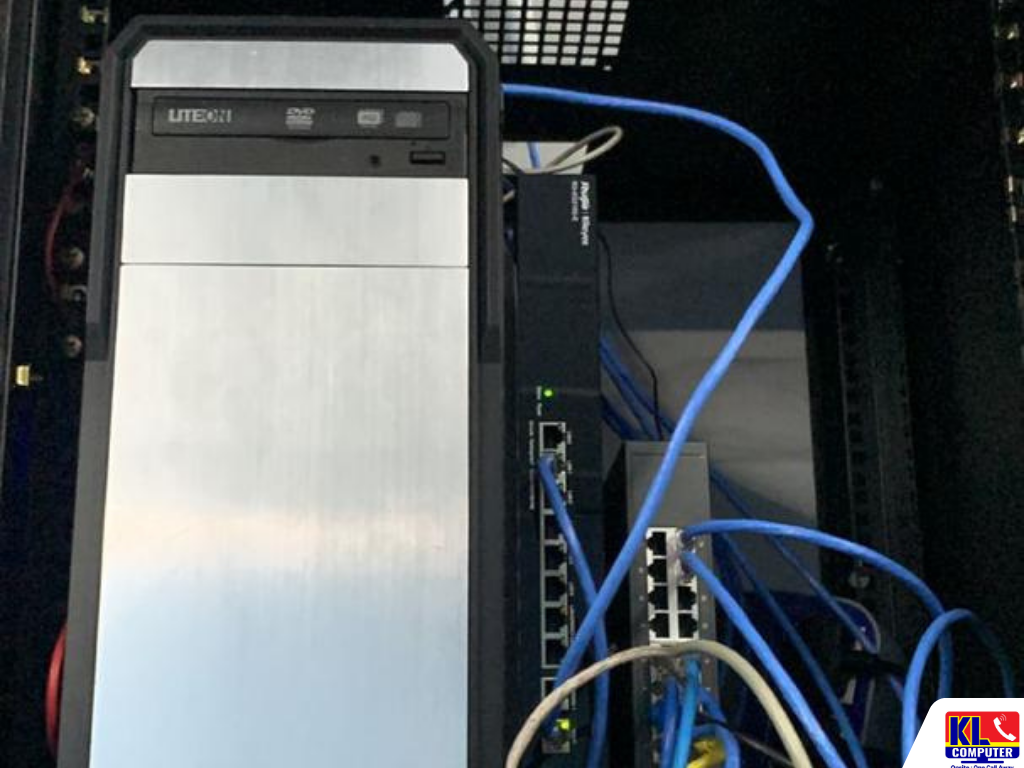
Does Your Small Office Need a Server? Server vs Cloud Storage for SMEs
Files scattered across staff laptops, an accounts folder only one person can open, a shared drive that slows down every time two people use it, or a USB drive that is the only copy of last year's invoices. At some point, every growing office asks the same question: should we buy a server, or just move everything to the cloud? The honest answer is that it depends on how your team works, how big your files are, and how much you want to look after yourself.
We help small and medium offices across Kuala Lumpur and the Klang Valley choose between an on-premise file server, cloud storage such as Microsoft 365 or Google Workspace, or a mix of both. Our file server and cloud storage solutions page covers what we set up. This guide helps you work out which option fits your office before you spend money on either.
Searching small office server Malaysia or server vs cloud storage for SME usually turns up vendors who only sell one answer. We're KL Computer, with four permanent branches across Kuala Lumpur and technicians who handle office IT call-outs every week, so we'll tell you plainly when you don't need a server at all.
🗄️ Not sure which way to go? Tell us how many staff you have, what kind of files you work with (documents, accounting data, drawings, video), whether people work from home, and how you back up today. We'll give you an honest recommendation. WhatsApp us to start.
The Short Answer: Server or Cloud?
There is no single right answer, but most small offices fall clearly into one group. Here is a quick way to see where yours sits.
Cloud Is Usually Enough If…
You have a small team, mostly work with documents, spreadsheets and email, some staff work from home or on the road, and you don't want to maintain hardware. Microsoft 365 or Google Workspace covers this well.
A Server Makes Sense If…
You work with large files (drawings, design, video), run accounting or ERP software that must sit on a local machine, need fast access for many staff in one office, or want data to stay inside your premises.
Consider Both If…
Your office needs fast local access to heavy files but also needs staff to work remotely and share documents with clients. A hybrid setup keeps each type of file where it works best.
If you only have three to five people sharing documents and email, a server is often more than you need. If you have a dozen people opening the same large project files all day, a cloud-only setup can become a daily frustration.
Server vs Cloud Storage: Side-by-Side
This is how the two options usually compare for an office of 5 to 50 people. Exact costs depend on your headcount, storage size and the software you use, so we quote only after understanding your needs.
| On-Premise File Server | Cloud Storage | |
|---|---|---|
| Upfront cost | Higher. You buy the server, storage disks and server software licences. | Low. Usually a monthly or yearly subscription per user. |
| Ongoing cost | Maintenance, replacement disks, power, and someone to look after it. | Subscription keeps going as long as you use it, and grows with your headcount. |
| Access from home or site | Needs a VPN or secure remote access to be set up properly. | Built in. Staff sign in from any device with internet. |
| Speed in the office | Fast on your local network, even for large files like CAD, video or accounting databases. | Depends on your internet line. Large files can feel slow on a weak connection. |
| Internet outage | Office network still works for local files. | Files may be hard to reach until the connection is back. |
| Control and data location | Data stays in your office. You decide who accesses it and how. | Data sits with the provider. You rely on their security and your account settings. |
| Set-up and upkeep | Needs proper set-up, updates and monitoring. | The provider runs the platform. You still need to set permissions and manage users. |
| Best fit | Offices with heavy files, specific software or strict data rules. | Small teams, mixed office and remote work, and offices that want low upkeep. |
One thing the table doesn't show: a server is not "set and forget". It needs updates, monitoring and a plan for when a disk fails. If nobody in your office will look after it, you should either pay for support or choose cloud.
Questions to Ask Before You Decide
Go through these with your team. Your answers usually point clearly to one option.
- •How many people need the same files at the same time? Many people working in the same large files favours a local server. A few people sharing documents works well in the cloud.
- •How big are your files? Large drawings, photos or videos take a long time to open over the internet. Normal office documents do not.
- •Do any of your programs need to run on a local server? Some accounting, inventory and industry software is built to be installed on a server in the office. Check with your software vendor first.
- •How reliable is your internet? If the line drops often, cloud-only will hurt. A stable business line with a backup connection makes cloud much safer.
- •Do staff work from home or visit client sites? Cloud makes this easy. A server can do it too, but needs secure remote access set up and maintained.
- •Who looks after IT in your office? If the answer is "nobody" or "whoever is free", plan for support, or lean towards a managed cloud service.
- •Do you handle customer personal data? Malaysia's PDPA was amended in 2024, with new requirements phased in during 2025, including data breach notification and security duties for those who process data for others. Where your data lives and who can reach it matters, so confirm your obligations with your legal adviser.
Not sure how to answer some of these? That's normal. Our technicians can walk through your setup during an onsite visit. See our business IT support for how ongoing support works.
The Middle Path: Hybrid Setup
You don't have to choose only one. Many offices we work with end up with a mix, because different files have different needs. A common arrangement looks like this:
- •Local server for heavy or sensitive data: accounting databases, large project files, and anything that must stay in the office.
- •Cloud for everyday collaboration: documents, spreadsheets, email and files shared with clients or staff working remotely.
- •Cloud as an offsite copy: a backup of the server in a different location, so one fire, flood or theft does not take everything.
- •Clear rules on what goes where: so staff don't end up saving the same file in three places.
Hybrid costs more to plan than a single option, but it often gives the best result for offices with mixed needs. It is also the setup that is most easily changed later, for example moving more files to the cloud as your team grows or works more remotely.
Whichever You Choose, Don't Skip Backup
The biggest mistake we see is assuming the storage itself is the backup. It isn't.
- •A server is not a backup. Disks can fail, and a mirrored pair of disks still copies a deleted or damaged file to both. You need a separate copy.
- •Cloud sync is not always a backup. If a file is deleted or overwritten by mistake, or damaged by malicious software, the change can sync everywhere. Check what recovery options your plan includes and how long they last.
- •Keep more than one copy, in more than one place. A widely used guideline is to keep three copies of important data, on two different types of storage, with one copy offsite.
- •Test the restore. A backup you have never tried to restore is a guess. We recommend checking restores on a regular schedule.
Our cloud backup and data recovery service is built around this. If you are also thinking about your office network, see our network and Wi-Fi setup, since both the server and the cloud depend on a stable network.
How We Help You Decide and Set Up
- 1.Tell Us About Your Office. Share your staff count, the kinds of files you handle, the software you use and whether people work remotely.
- 2.Assessment & Honest Recommendation. We look at your current computers, network and internet line, then recommend a file server, cloud storage or a hybrid, and tell you if you don't need a server.
- 3.Clear Quotation. You see the hardware, licences or subscriptions, and set-up work before anything starts, so there's no surprise afterwards.
- 4.Set-Up & Data Migration. We set up storage, user accounts and permissions by role, and move your existing files from scattered computers into the new system.
- 5.Backup & Remote Access. We connect a backup solution and set up secure remote access for staff who work outside the office.
- 6.Handover & Ongoing Support. We show your team how to use it and stay available for {ONS} if something needs attention.
Areas We Cover Around KL & Klang Valley
Our four branches let us send technicians onsite across Kuala Lumpur without a long travel delay. If your office isn't listed below, WhatsApp us your location and we'll confirm coverage.
Setapak
Wangsa Maju
Cheras
Pandan Jaya / Pandan Indah
Ampang
Kuchai Lama
Bangsar
Bukit Bintang
Visit or Call a Branch
Call or WhatsApp any branch to book an onsite visit for an IT assessment, or walk in to talk it through with us first.
📍 Branch
KL Computer Services Setapak
First Floor, 36-1, Jalan 2/23A, Taman Danau Kota, 53300 Wilayah Persekutuan Kuala Lumpur
Mon-Fri: 9am-7.30pm | Sat-Sun: 9am-7pm
📞 016-501 1914
📍 Branch
KL Laptop Shop Cheras Pandan Jaya
First Floor, 34-1A, Jalan Pandan 2/1, Pandan Jaya, 55100 Kuala Lumpur
Mon-Fri: 9am-7pm | Sat: 10am-7pm | Sun: Closed
📞 018-245 1914
📍 Branch
KL Computer Shop Ampang Pandan Indah
First Floor, 13M Jalan Pandan Indah 4/2 Ampang, 55100 Wilayah Persekutuan Kuala Lumpur
Mon-Fri: 9am-7.30pm | Sat-Sun: 10am-7pm
📞 018-405 1914
📍 Branch
KL Computer Services Jalan Klang Lama
First Floor, 2-1 Jalan Indrahana 1, Off Jalan Kuchai Lama, Klang Lama, 58200 Wilayah Persekutuan Kuala Lumpur
Mon-Fri: 9am-7.30pm | Sat-Sun: 10am-7pm
📞 018-944 1914Why Offices Choose Us
- ✓12 Years Supporting Office IT. We've handled computer, network and storage work for Klang Valley offices for over a decade. See our about us page for our background.
- ✓Honest Advice, Not a Sales Push. If cloud storage is enough for your office, we'll say so before you buy a server you don't need.
- ✓Quote Before Work. You know the hardware, licence and set-up costs before we start, not after.
- ✓We Look at the Whole Setup. Computers, network, storage and backup are checked together, so one weak link doesn't undo the rest.
- ✓Four Fixed Branches. Not a one-man call-out service. Our Setapak HQ alone has a 4.9-star rating from over 2,000 Google reviews you can check.
- ✓More Than Storage. We also handle computer repair and maintenance, bulk computer cleaning for offices, and phone repair through our sister brand klmobile.my.
Frequently Asked Questions
Have more questions? Visit our dedicated FAQ page, or see our business IT services on klcomputerservices.com.my.
Does a small office with 5 to 10 staff need a server? ▾
Not usually. For a small team that mainly shares documents, spreadsheets and email, cloud storage such as Microsoft 365 or Google Workspace is often enough and needs much less upkeep. A server becomes worth considering when you work with large files, run software that must be installed on a local server, or need data to stay in the office.
Is cloud storage cheaper than a server? ▾
Cloud usually costs less upfront, because you pay a subscription instead of buying hardware and licences. Over several years the total can be closer, since the subscription continues and grows with your headcount, while a server also needs maintenance and eventual replacement. We compare both for your office before you decide.
Is cloud storage safe for business data? ▾
Major cloud platforms invest heavily in security, but your own settings matter just as much: strong passwords, multi-factor authentication, sensible permissions and a plan for recovering deleted files. Most cloud data problems come from account or permission mistakes, not the platform itself.
What happens to our files if the internet goes down? ▾
With a local file server, the office can keep working on local files. With cloud-only storage, staff may not reach their files until the connection returns, unless files are also synced to their computers. If your internet is unreliable, tell us and we'll factor it into the recommendation.
Is a NAS the same as a server? ▾
A NAS is a small storage device on your network. It is simpler and cheaper than a full server, but it is not a replacement for backup. Whether a NAS, a full server or cloud storage is right depends on your file sizes, number of users and the software you run, which we check during the assessment.
Can you move our files from old computers into a server or cloud? ▾
Yes. We handle data migration from scattered computers into centralised storage, set up user accounts and permissions by role, and connect a backup solution as part of the set-up.
Can you support a setup we already have? ▾
Yes. If you already have a server or cloud subscription that is slow, messy or not backed up properly, we can review it and recommend improvements, or provide ongoing onsite support.
📞 Call / WhatsApp (Setapak HQ): 016-501 1914
📞 Call / WhatsApp (Jalan Klang Lama): 018-944 1914
📞 Call / WhatsApp (Cheras/Pandan Jaya): 018-245 1914
📞 Call / WhatsApp (Ampang/Pandan Indah): 018-405 1914
🗺️ Waze / Google Maps: search "KL Computer Services" with your nearest branch area
🕒 Open daily except Cheras on Sundays, hours vary by branch, see the branch cards above
✉️ Email: salesklcs@gmail.com
Table Of Content
Featured Services
Talk To Us
Got an IT issue? Skip the form — just WhatsApp us directly. Describe your problem and we'll get back to you fast.
WhatsApp Us NowRecent Post